

Use the Nebu CLI
Install nebu, sign in, start bounded-cost scans, monitor progress, and work with findings.
The nebu command line interface uses the same project, repository, scan, and finding hierarchy as the Nebu web application. Human-readable output is the default. Add the global --json option for scripts and structured processing.
Data is written to standard output. Progress and errors are written to standard error.
To let ChatGPT, Codex, or Claude choose and run these commands for you, see Use the Nebu plugin with ChatGPT, Codex, and Claude.
Install and sign in
Install the CLI from npm, then confirm the installed version:
npm install -g @nebusec/nebu --forcenebu --versionSign in through the browser and verify the active identity:
nebu auth loginnebu auth statusFor a terminal without a browser, run nebu auth login --headless and follow the displayed verification link and one-time code.
For unattended CI, provide NEBUSEC_PLATFORM_API_KEY through the CI secret store. Never put an API key in documentation, chat, command history, screenshots, or build logs.
Find projects and repositories
Here are some basic commands for finding projects and repositories:
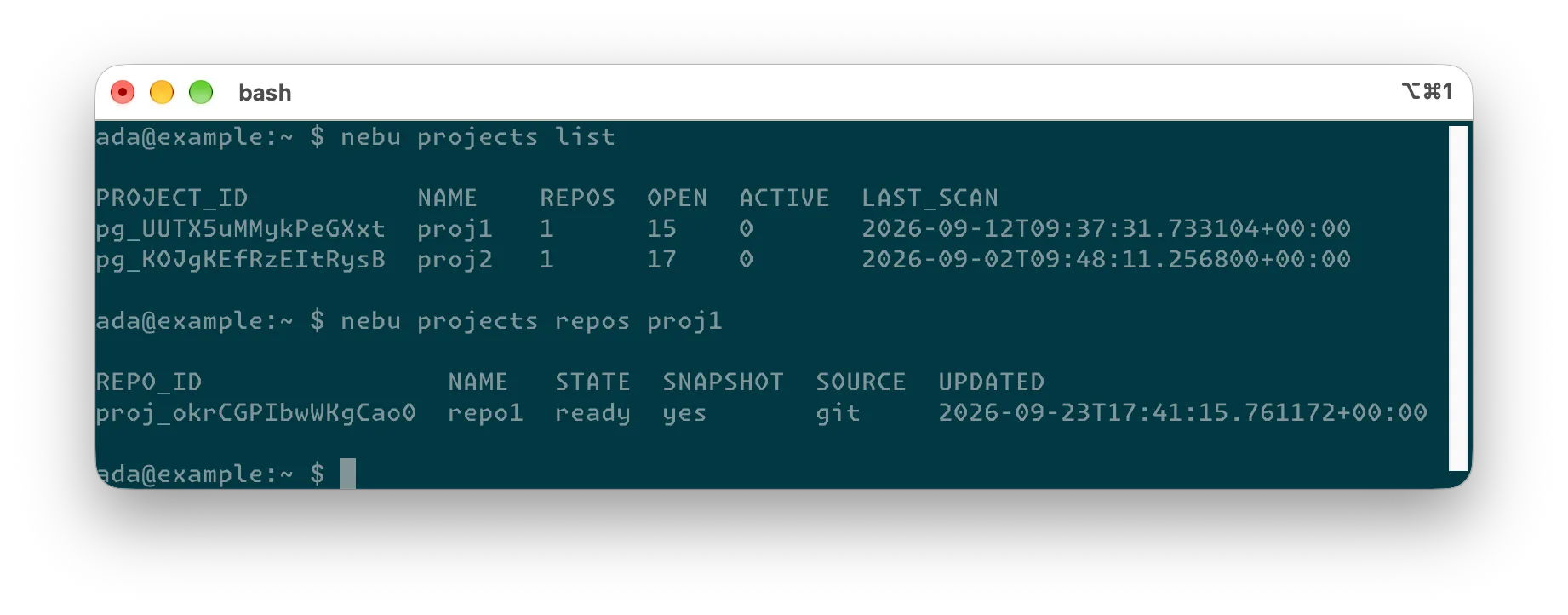
nebu projects listnebu projects get <project>nebu projects repos <project>nebu repos list --project <project>nebu repos get <repo>nebu scans list --repo <repo>Commands usually accept a unique name or ID. IDs are safest in automation:
- Project IDs begin with
pg_. - Repository IDs begin with
proj_. - Scan IDs begin with
scan_.
Estimate before starting a scan
Estimate an existing Nebu repository without creating a scan:
nebu scans run --repo <repo> --estimate-onlyTo submit an authorized local directory into an existing project and estimate it:
nebu scans run --path /path/to/repository --project <project> --estimate-onlyAfter reviewing the quote, set the maximum amount you authorize:
nebu scans run --repo <repo> --depth standard --max-cost 20 --waitThe CLI refuses to start the scan with exit code 6 if the server quote exceeds --max-cost.
For optional source scope and a separate server-side running-spend backstop:
nebu scans run --repo <repo> \ --include src/api \ --include src/auth \ --name "API security review" \ --max-cost 20 \ --cost-cap 25 \ --followUse --max-cost as the price-consent limit. --cost-cap is a separate server-side backstop for running spend. Prefer --max-cost over unconditional --yes, especially in automation.
--wait polls for a final result. --follow streams scan events until the scan reaches a terminal state.
Monitor and control a scan
Here are some basic commands for monitoring or controlling a scan:
nebu scans get <scan_id> -snebu scans get <scan_id> --livenebu scans follow <scan_id>nebu scans pause <scan_id>nebu scans resume <scan_id>nebu scans cancel <scan_id>nebu scans retry <scan_id>nebu scans cost-cap <scan_id> 25Pause, resume, cancel, retry, and cost-cap commands change server state. Confirm the exact scan ID before using them. If a local wait is interrupted or times out, backend work may continue; check the scan again before retrying.
Review findings
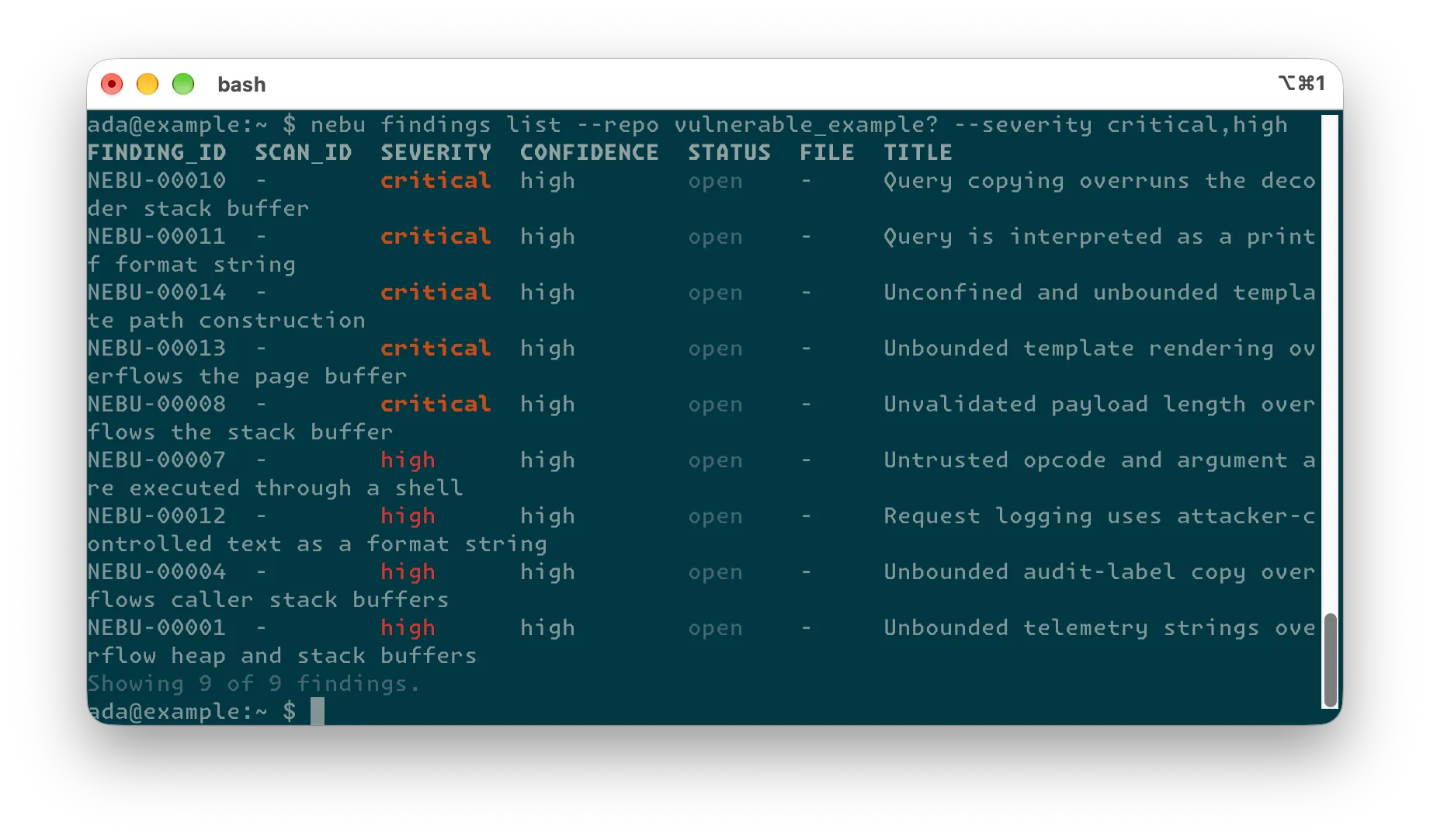
You can start with narrow filters:
nebu findings list --scan <scan_id>nebu findings list --repo <repo> --severity critical,high --status confirmednebu findings list --project <project> --file-prefix src/api/ --limit 20nebu findings get --scan <scan_id> <finding_id> --fullnebu findings export --scan <scan_id> > findings.mdA finding display ID is unique only within its repository, so get also needs the scan that contains it. Use --all only when you need the complete result set.
Generate patches and pull requests
nebu findings patch status <finding_id> --scan <scan_id>nebu findings patch get <finding_id> --scan <scan_id> --waitnebu findings patch generate <finding_id> --scan <scan_id> --wait
nebu findings pr status --scan <scan_id> --waitnebu findings pr create <finding_id>... --scan <scan_id> --timeout 10m
Patch generation and pull request creation start backend work. Confirm the scan, finding IDs, target repository, and available patches before starting them. Pull request creation does not modify your local Git checkout or automatically mark findings as fixed.
Common exit codes
| Exit code | Meaning | What to do |
|---|---|---|
3 | No valid authentication. | Run nebu auth login or configure the CI API key through a secret store. |
4 | The requested resource was not found. | Recheck the project, repository, scan, or finding ID. |
6 | Price consent is missing or the quote exceeds --max-cost. | Review the quote and supply a new maximum only if approved. |
7 | A patch or pull request wait timed out. | Use the recovery or status command printed by the CLI. Backend work may still be running. |
Preserve standard error and the request ID when asking NebuSec support to investigate an API or backend failure.
