

Use the Nebu plugin with ChatGPT, Codex, and Claude
Install the NebuSec CLI plugin in terminal or desktop agents, sign in, and run security workflows safely.
The NebuSec CLI plugin lets supported local coding surfaces in ChatGPT, Codex, and Claude use NebuSec Platform without leaving the agent. The plugin can inspect projects, repositories, scans, code and cloud findings, estimate scan cost, run bounded scans, generate patches, and create remediation pull requests.
The plugin includes the Nebu CLI. You do not need to install @nebusec/nebu separately when you use the plugin.
Requirements
- A NebuSec Platform account.
- Codex or Claude Code running locally on macOS or Linux.
- An x64 or arm64 computer.
- Authorization to submit the repository or source code you ask NebuSec to scan.
Windows and browser-only ChatGPT sessions are not supported by this version of the plugin.
Where the plugin works
| Surface | Installation | Nebu CLI execution |
|---|---|---|
| ChatGPT desktop app | Install from the Plugins Directory after adding the NebuSec marketplace. | Supported in a local Codex or Work task on macOS or Linux. Ordinary browser-only ChatGPT sessions are not supported. |
| Codex CLI | Install from the NebuSec marketplace with codex plugin. | Supported on macOS or Linux. |
| Claude app or Claude Desktop | Paid Claude plans can add plugins from Customize → Plugins. | The current Nebu plugin is supported through Claude Code. The ordinary Chat tab cannot run its bundled local CLI. |
| Claude Code | Install from the NebuSec marketplace with claude plugin. | Supported on macOS or Linux. |
Install in the ChatGPT desktop app
The NebuSec CLI plugin is not yet present in the public plugin directory. Add the NebuSec marketplace once from a terminal:
codex plugin marketplace add NebuSec/nebu-plugin --ref mainThen install it in the desktop app:
- Restart the ChatGPT desktop app so it reloads marketplace sources.
- Find Customize in the side bar.
- Open the Plugins directory.
- Select the Personal marketplace.
- Open nebu-cli and select Install plugin.
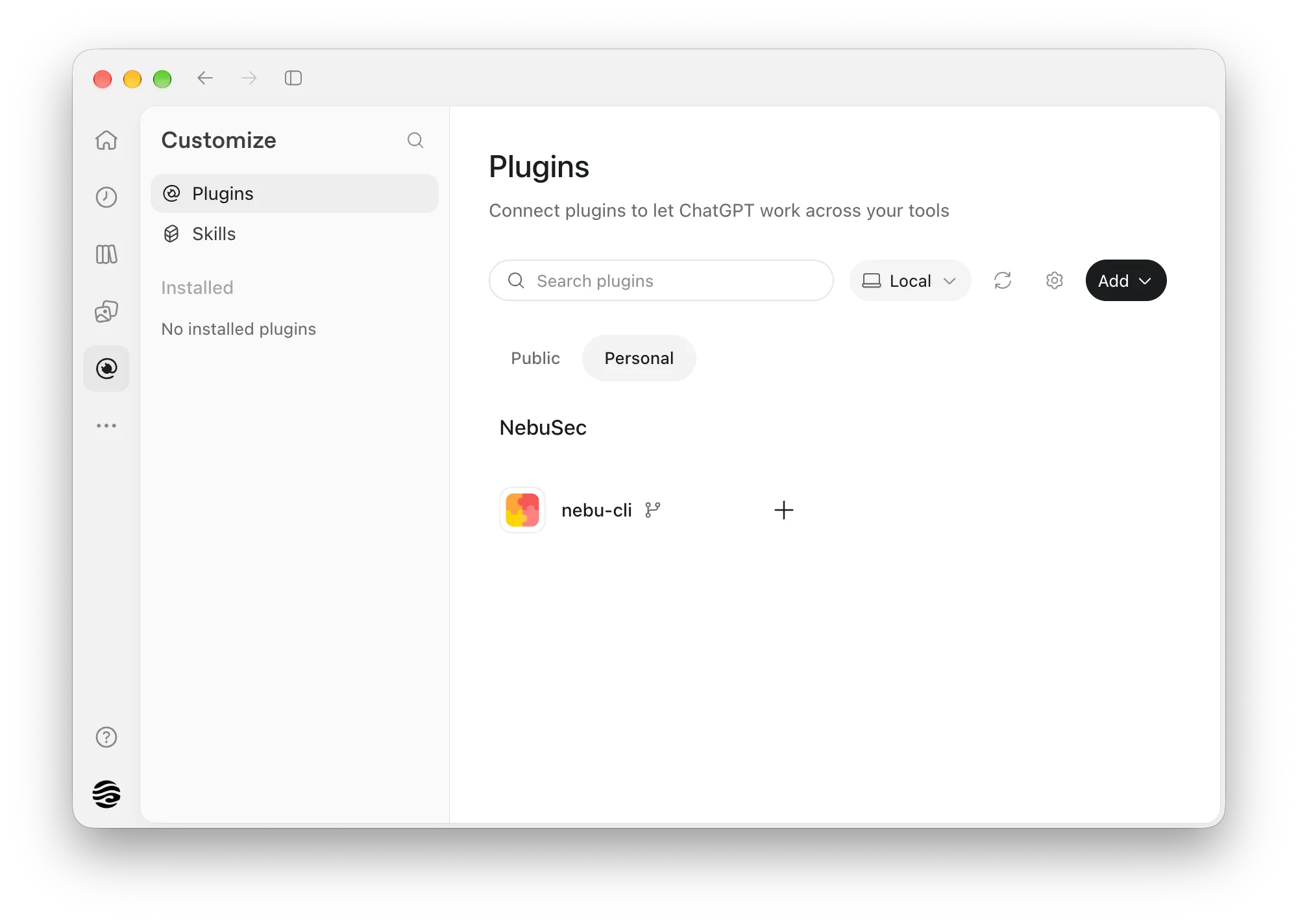
Use a local coding task
The plugin runs a bundled local executable. Installing it in ChatGPT does not make it runnable in a browser-only chat. Open a local Codex or Work task on a supported macOS or Linux computer.
Install in Codex
Add the NebuSec marketplace:
codex plugin marketplace add NebuSec/nebu-plugin --ref mainInstall the plugin from that marketplace:
codex plugin add nebu-cli@nebusecConfirm that the plugin is installed:
codex plugin list | grep nebu-cli || echo "nebu-cli not installed, please refer to https://nebusec.ai/help/code-security/nebu-plugin/"Start a new Codex chat after installation so the plugin skill is available to the agent.
Add the plugin in the Claude app
Claude supports plugins in the web app and Claude Desktop on paid plans. A plugin added in the GUI is saved to your Claude account and can also become available in Claude Code when you sign in with the same account.
- Open Claude or Claude Desktop.
- Open Customize in the left sidebar.
- Select Plugins.
- Select Add, then Add marketplace.
- Choose Add from a repository.
- Enter
NebuSec/nebu-pluginorhttps://github.com/NebuSec/nebu-plugin. (If this step fails, see the next chapter to instal the plugin using Claude Code.) - After the marketplace syncs, open NebuSec CLI and select Add.
- Start a new Claude Code session signed in with the same Claude account.
Claude Chat is not a Nebu execution surface
The plugin can be added to your Claude account, but the current Nebu workflow calls a bundled local executable. Use Claude Code on a supported macOS or Linux computer to run Nebu commands. The ordinary Chat tab can show the plugin’s instructions but cannot execute the local CLI.
Some organization-managed Claude marketplace syncs do not accept plugins whose marketplace entry uses an npm source. If NebuSec CLI does not appear after adding the repository, install it with Claude Code instead. A future Claude directory listing or a GUI-compatible marketplace release can remove this limitation.
Install in Claude Code
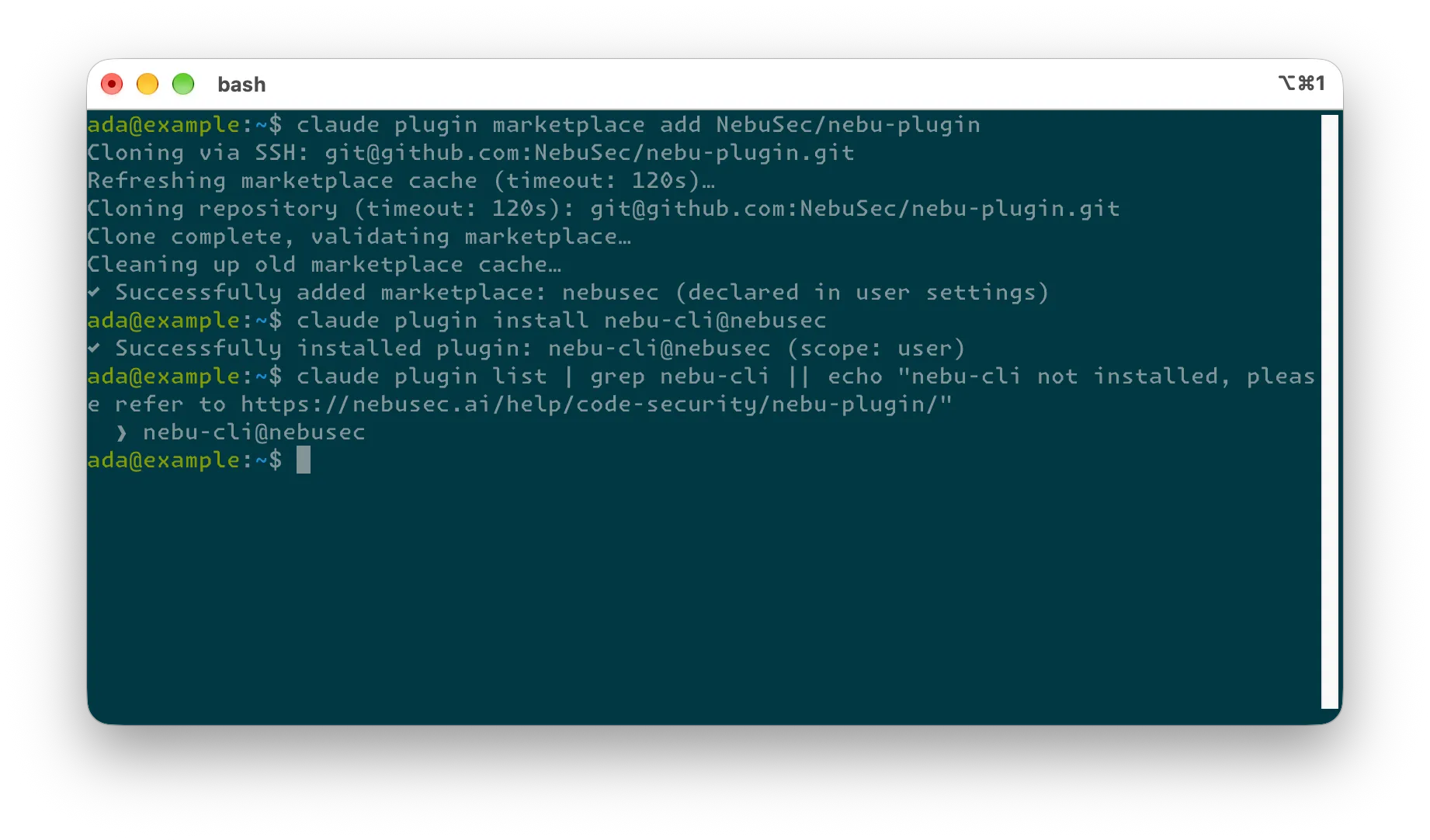
Add the NebuSec marketplace:
claude plugin marketplace add NebuSec/nebu-pluginInstall the plugin:
claude plugin install nebu-cli@nebusecConfirm that the plugin is installed:
claude plugin list | grep nebu-cli || echo "nebu-cli not installed, please refer to https://nebusec.ai/help/code-security/nebu-plugin/"Start a new Claude Code session after installation so the plugin skill is loaded.
Sign in to NebuSec
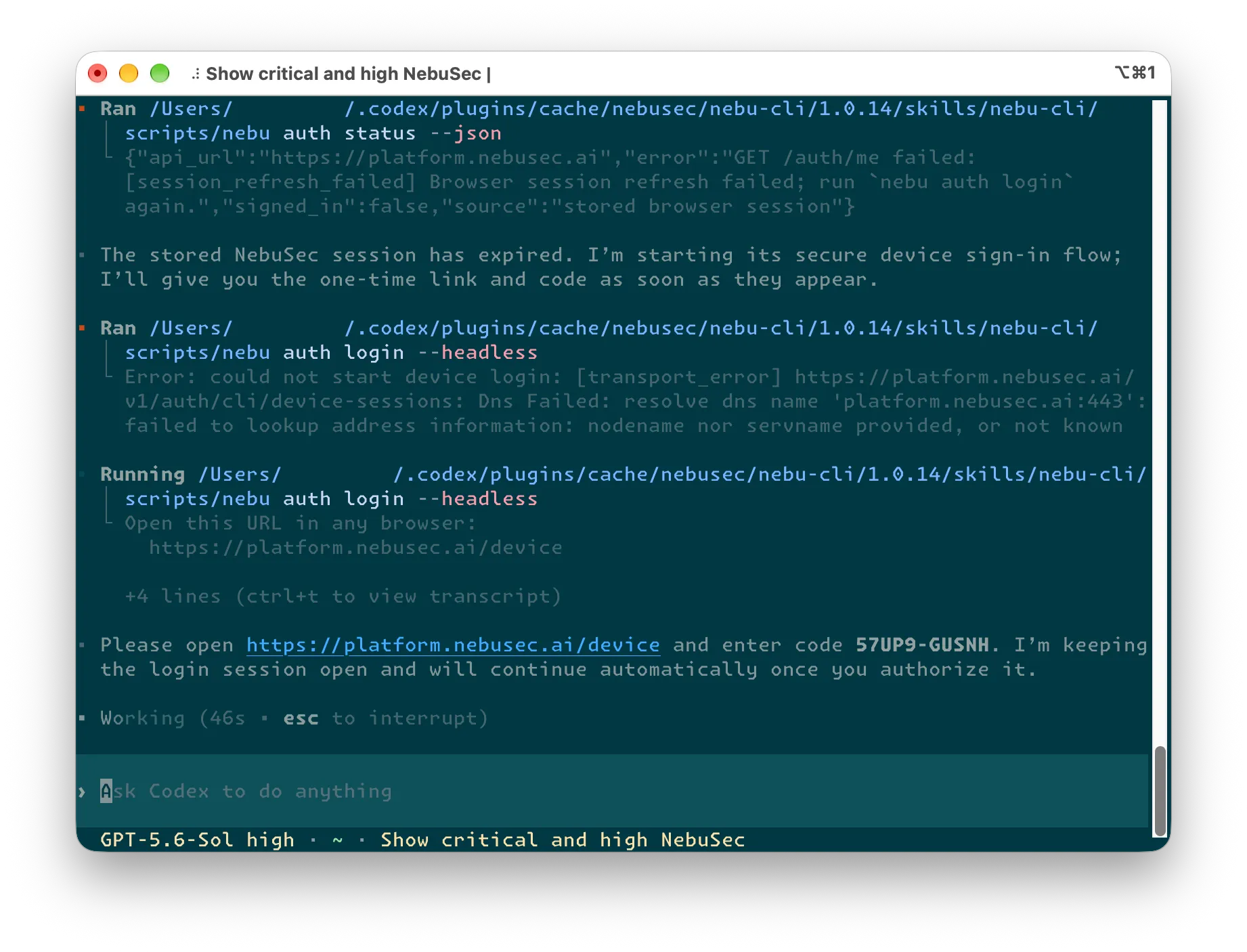
Installation does not sign you in. Ask Codex or Claude Code to perform a NebuSec task, for example:
Show the critical and high NebuSec findings.If no valid credential is available, the agent starts the headless NebuSec sign-in flow and shows you a verification URL and one-time code.
- Open the displayed URL in your browser.
- Enter the one-time code.
- Complete sign-in with your NebuSec account.
- Return to the agent. It verifies the signed-in identity and continues your original request.
The saved credential is reused in later sessions for the same operating-system user.
Never paste credentials into chat
Do not send passwords, API keys, access tokens, browser callbacks, or other credentials to Codex or Claude Code. The one-time device code is the only sign-in value intended to be relayed by the agent.
For unattended CI, configure NEBUSEC_PLATFORM_API_KEY through the CI platform’s secret store. Never put an API key in a prompt, repository, screenshot, command history, or build log.
Use the plugin
Describe the result you want in ordinary language. The agent selects the bundled CLI command and follows the plugin’s safety rules.
Review findings
Show the Critical and High NebuSec findings for this repository.Open the latest confirmed finding and summarize its root cause and evidence.Read-only list, detail, status, and export requests can run without an extra confirmation when they match the scope you requested.
Check scan status
Check the latest NebuSec scan for this repository and summarize what needs attention.Follow scan scan_123 until it finishes, then summarize the confirmed findings.Estimate a scan
Estimate the cost of scanning this workspace without starting a scan.An estimate does not start a paid scan. Before the agent starts one, you must provide the maximum quoted price you authorize.
Run the scan if the quoted price is no more than $20, then wait for the result.Paid scans require a price limit
The plugin uses your maximum as --max-cost. If the server quote is higher, the scan
does not start. The plugin never uses unconditional price consent.
Generate a patch or pull request
Generate a patch for finding VULN-123 in scan scan_123.Create a pull request for the confirmed findings in scan scan_123 that already have patches.Patch generation and pull request creation change backend or repository state. The agent confirms the exact scan, findings, repository, and action before proceeding.
Safety behavior
The plugin is designed to keep consequential actions explicit:
- It estimates paid scans before launch.
- It confirms exact targets before changing finding state, controlling a scan, generating a patch, or creating a pull request.
Update or remove the plugin
Refresh the Codex marketplace and reinstall or update the plugin when a new version is available:
codex plugin marketplace upgrade nebuseccodex plugin remove nebu-cli@nebuseccodex plugin add nebu-cli@nebusecUpdate or remove the Claude Code installation with:
claude plugin update nebu-cli@nebusecclaude plugin uninstall nebu-cli@nebusecTroubleshooting
The plugin is installed but is not used
Start a new Codex chat or Claude Code session. Then name NebuSec or nebu-plugin in the request and describe the repository, scan, or finding you want to inspect.
Sign-in expires
The device flow expires after ten minutes. Ask the agent to start a new NebuSec sign-in flow, then use the new URL and code.
macOS blocks the bundled executable
Open System Settings → Privacy & Security, approve the blocked NebuSec executable, and retry.
A paid scan does not start
Review the estimate and the maximum price you supplied. If the quote exceeds your maximum, provide a new limit only after approving the higher amount.
